That "Your Computer Is Infected" Pop-Up Is Fake: How to Spot Scareware
By Chris Harrison · October 8, 2026 · 5 min read
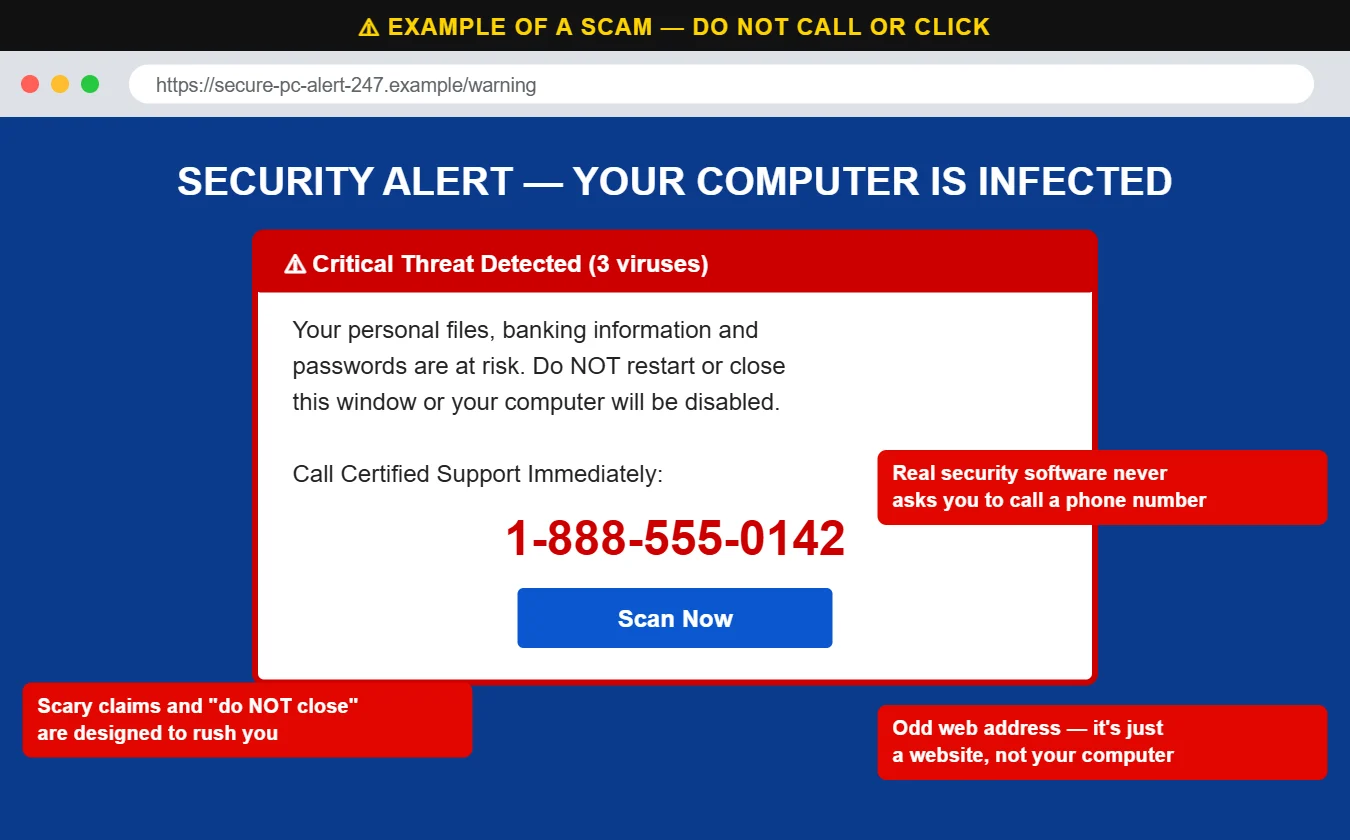
You’re reading the news or looking up a recipe when the screen suddenly fills with a red-and-blue warning. An alarm might sound. It says your computer is infected, your files and bank information are at risk, and you need to call “certified support” right now.
This is called scareware, and it’s one of the most common calls we get. The good news: in almost every case, your computer isn’t infected at all. It’s just a web page designed to look like one.
Example of a scareware page. The real ones often add flashing text, a loud alarm and a voice telling you not to shut down.
How to tell it’s fake
It pops up in the corner of your screen as a notification — even when your browser is closed. That means a website you once clicked “Allow” on is sending it (more below).
It tells you to call a phone number. Real security software — including the protection built into Windows and macOS — never asks you to call anyone.
It’s inside your web browser. Look at the top of the screen: if there’s a web address, it’s a website, not a message from your computer.
It tries to scare you into acting fast. “Do NOT close this window,” countdown timers and alarms are pressure tactics.
The browser seems “locked.” Scareware pages often go full-screen and pop up repeated boxes so it feels like you can’t get out.
How to close it safely
Don’t call the number and don’t click anything on the page — including “Scan Now,” “OK” or “Cancel.”
Press Esc to exit full screen, then try closing the tab or browser.
If it won’t close on Windows, press Ctrl + Shift + Esc to open Task Manager, select your browser and click End task. On a Mac, press Command + Option + Esc and choose Force Quit.
If all else fails, hold the power button to shut down, then start the computer again.
When the browser reopens, don’t restore the previous tabs — that would bring the page right back.
Where scareware comes from
The most common source we see is a website you allowed to send notifications. At some point you (or someone using your computer) clicked “Allow” on a prompt like “Click Allow to verify you’re not a robot” or “Allow to watch the video.” From then on, that site can push fake virus warnings straight to your screen, day or night, and each one links to a scareware page.
Other sources include bad ads on otherwise normal websites, mistyped web addresses and links in search results. Simply seeing the page doesn’t infect your computer; the danger is what the scammers ask you to do next.
Our rule: always click “Block” when a website asks to show notifications.
Almost no website you visit actually needs to send you notifications. Saying yes is one of the most common ways scareware, fake virus alerts and browser hijackers get onto computers and phones. If you’re not sure, choose Block (or Don’t Allow) — you can always change it later.
How to stop the pop-ups for good
If the warnings keep coming back as notifications, remove the site’s permission:
Chrome: Settings → Privacy and security → Site settings → Notifications → remove unfamiliar sites from “Allowed to send notifications.”
Edge: Settings → Cookies and site permissions → Notifications.
Android: Chrome → Settings → Site settings → Notifications.
Our guide to browser hijacks walks through the full cleanup.
If you already called
You’re not alone, and it’s fixable. If you let the “technician” connect to your computer, paid them, or gave them any passwords:
Disconnect from the internet right away (unplug the network cable or turn off Wi-Fi).
Call your bank or card company if you paid anything or logged into banking while they were connected.
Change important passwords from a different device — email first, then banking.
Have the computer checked. Scammers often leave remote access software behind so they can come back later.
We clean up after these scams all the time and we never judge. Call us at 620-960-8711, or read how our remote support works — every session starts with you calling us.
Want more free guides like this? Browse our Scam & Security Library — real examples of phishing emails, scam texts, fake pop-ups and more.
About the author
Chris Harrison
Chris owns Ness City Computer Service and has more than 30 years of IT experience helping Kansas homes and businesses keep their technology running and secure.
Have a question about your tech?
Call the local guys. We’re happy to help — no pressure.