
Ness City Computer Service LLC

Ness City Computer Service LLC
A browser hijack is when something changes how your web browser behaves without you meaning it to. It’s rarely as dramatic as it sounds, but it’s annoying, it exposes you to scams, and it can slow your computer down.
One of the most common causes is a website that asks for permission to send you notifications — disguised as a robot check or a video player.
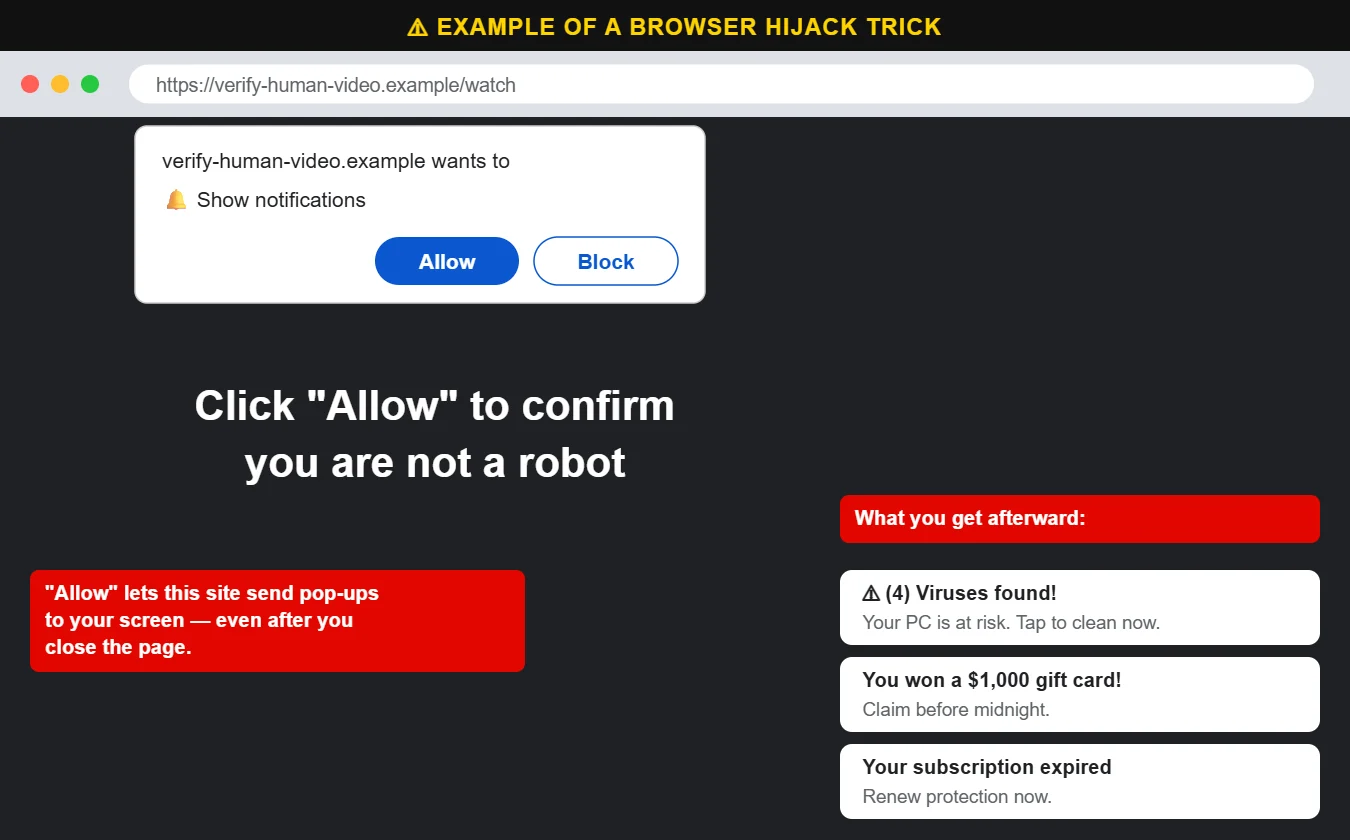
Our rule: always click “Block” when a website asks to show notifications.
Almost no website you visit actually needs to send you notifications. Saying yes is one of the most common ways scareware, fake virus alerts and browser hijackers get onto computers and phones. If you’re not sure, choose Block (or Don’t Allow) — you can always change it later.
Once you click Allow, that site can send notifications to your desktop or phone whenever it likes. Many of them link straight to scareware pages or shady downloads.
Going forward, make “Block” your default answer. You can even turn off notification requests entirely: in Chrome, go to Site settings → Notifications and choose “Don’t allow sites to send notifications.” Edge and Firefox have similar options.
Open your browser’s Extensions or Add-ons page and remove anything you didn’t deliberately install. Fewer extensions is safer.
Chrome and Edge both have a “Reset settings” option that restores the default homepage and search engine and turns off extensions without deleting your bookmarks or saved passwords.
On Windows, open Settings → Apps → Installed apps and sort by install date. Uninstall anything suspicious that appeared around the time the problems started.
Run a full scan with your antivirus to catch anything left behind.
If the changes keep coming back after you reset them, something on the computer is reinstalling them. That’s a good time to let us take a look. Call us at 620-960-8711 — we can usually clean this up remotely the same day. For businesses, our managed cybersecurity blocks many of these sites before anyone can click “Allow.”
Want more free guides like this? Browse our Scam & Security Library — real examples of phishing emails, scam texts, fake pop-ups and more.