
Ness City Computer Service LLC

Home › Blog › Security
Security

7 Red Flags in a Phishing Email (With a Real-World Example)

By Chris Harrison · October 8, 2026 · 6 min read

Phishing emails are the number one way criminals get into small businesses. They’re designed to look routine — a password expiring, a shared document, an invoice, a delivery problem — so you click before you think.

Here’s a typical example with the warning signs marked.
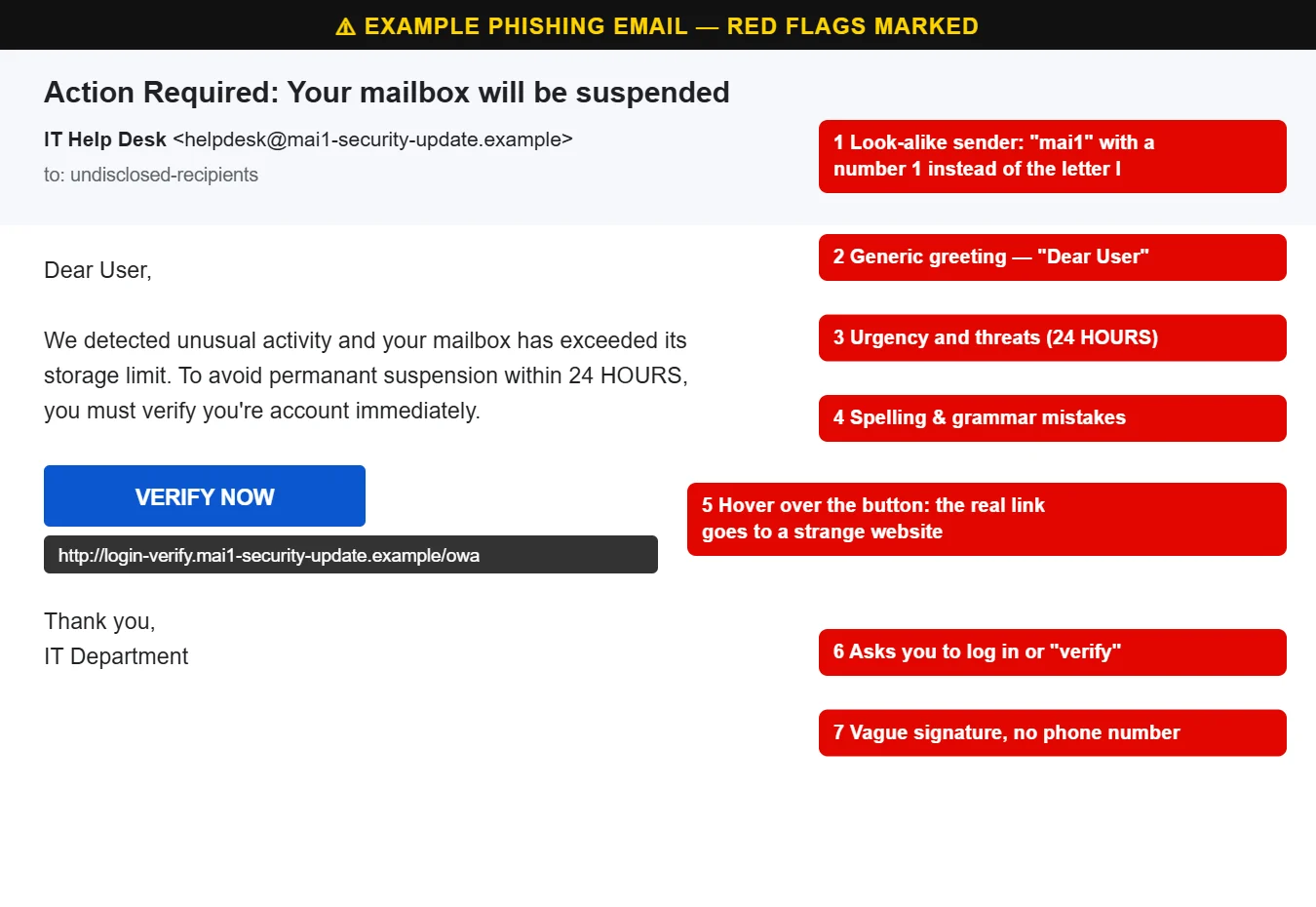
Example phishing email with seven red flags marked
A typical “your mailbox will be suspended” phishing email with the red flags marked.

The 7 red flags

  1. A look-alike sender. Check the actual email address, not just the display name. Scammers swap letters for numbers (“mai1” instead of “mail”) or add extra words to real company names.
  2. A generic greeting. “Dear User” or “Dear Customer” from a company that knows your name is suspicious.
  3. Urgency and threats. “Within 24 hours,” “account suspended,” “final notice” — pressure is meant to stop you from double-checking.
  4. Spelling and grammar mistakes. Fewer than there used to be, thanks to AI writing tools, but still common.
  5. Links that don’t match. On a computer, rest your mouse over a link or button (don’t click) and look at the address that appears. On a phone, press and hold the link to preview it.
  6. A request to log in, “verify” or pay. Legitimate companies rarely email you a link to type in your password.
  7. A vague signature. No name, no phone number, just “IT Department” or “Support Team.”

Other phishing emails to watch for

  • “Someone shared a document with you” — leading to a fake Microsoft 365 or Google sign-in page
  • Fake invoices or payment receipts with a phone number to “cancel” a charge you never made
  • Delivery problems for packages you didn’t order
  • Messages from a vendor or co-worker asking to update bank details for a payment — always confirm by phone

What to do with a suspicious email

  • Don’t click links, open attachments or reply.
  • If it claims to be from a company you deal with, go to their website or app directly — not through the email.
  • Use the Report phishing or Report button in Outlook or Gmail, then delete it.
  • At work, forward it to your IT provider if you’re not sure.

If you already clicked

If you entered your password, change it immediately and turn on two-factor authentication (see our post on password safety). If you opened an attachment, disconnect from the internet and have the computer checked. Then tell your bank if any financial information was involved.

For businesses, the best defense is layers: email filtering, two-factor authentication, up-to-date computers and staff who know what to look for. Our cybersecurity services cover all of it. Call us at 620-960-8711 to talk it through.

Want more free guides like this? Browse our Scam & Security Library — real examples of phishing emails, scam texts, fake pop-ups and more.

Chris Harrison, owner of Ness City Computer Service
About the author
Chris Harrison

Chris owns Ness City Computer Service and has more than 30 years of IT experience helping Kansas homes and businesses keep their technology running and secure.

Have a question about your tech?

Call the local guys. We’re happy to help — no pressure.

Services

How we can help

Computer repair & PC sales

Managed IT services

Cybersecurity

Networking & Wi-Fi

Backup & disaster recovery

VoIP business phones

Surveillance & alarms

Web design & hosting

Scroll to Top
