
Ness City Computer Service LLC

Home › Blog › Security
Security

"A Document Was Shared With You": How Fake Sign-In Pages Steal Passwords

By Chris Harrison · October 8, 2026 · 5 min read

Your email password is the key to almost everything else: password resets for your bank, your accounts and your business software all go through your inbox. That’s why so many phishing emails have one goal — getting you to type that password into a fake sign-in page.

The most common lure today is a notice that someone has shared a document with you: an invoice, a contract, a payroll update or a voicemail.
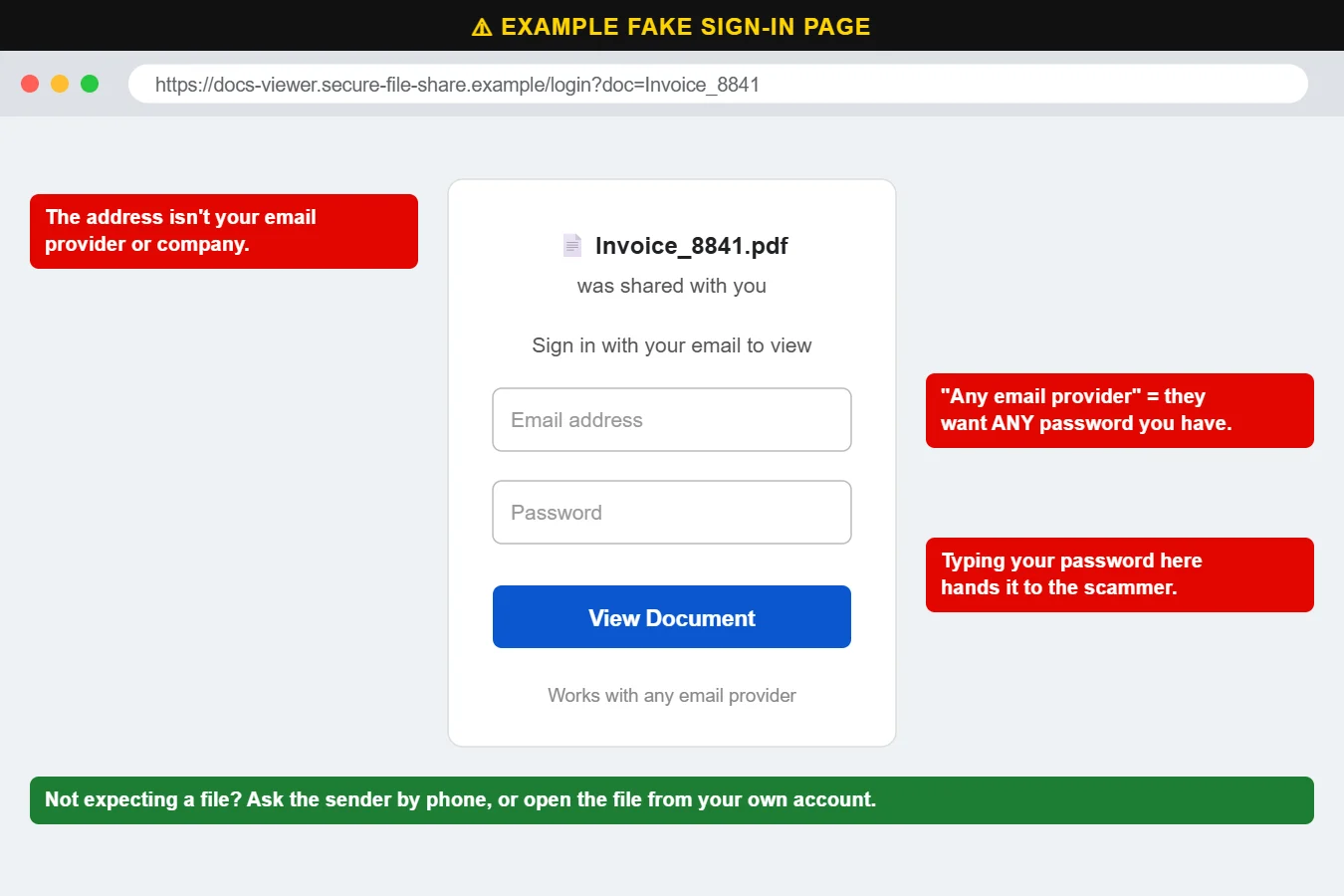
Example of a fake shared document sign-in page
A fake document-sharing sign-in page. The web address is the giveaway.

How it works

  1. You receive an email that a file was shared with you. Sometimes it really comes from a customer or vendor whose account was already hacked.
  2. The link opens a page that looks like a file viewer and asks you to sign in to see the document.
  3. Whatever you type is sent to the attacker, who logs into your real account — often within minutes — and uses it to send the same email to everyone you know.

How to spot a fake sign-in page

  • Check the web address. Your email provider’s real sign-in page is on its own well-known domain. A file-sharing look-alike, a misspelled name or a long string of random words is a fake.
  • “Sign in with any email provider” is a huge red flag. Real services don’t need your password from a different company.
  • You weren’t expecting a file. Unexpected invoices and documents are the most common bait.
  • Your password manager doesn’t fill it in. Password managers match the real website address — if yours doesn’t offer to fill, the site may not be what it claims.

Protect yourself

  • Turn on two-factor authentication for email (see Password Safety 101).
  • Open shared files by going to your own account directly, not through the email link.
  • If in doubt, call the sender at a number you already have.

If you entered your password

Change it immediately, sign out of all sessions, and turn on two-factor authentication. Check your email rules and forwarding settings — attackers often add hidden rules to forward or delete messages. Then warn your contacts. Call us at 620-960-8711 and we’ll help you lock it down.

Want more free guides like this? Browse our Scam & Security Library — real examples of phishing emails, scam texts, fake pop-ups and more.

Chris Harrison, owner of Ness City Computer Service
About the author
Chris Harrison

Chris owns Ness City Computer Service and has more than 30 years of IT experience helping Kansas homes and businesses keep their technology running and secure.

Have a question about your tech?

Call the local guys. We’re happy to help — no pressure.

Services

How we can help

Computer repair & PC sales

Managed IT services

Cybersecurity

Networking & Wi-Fi

Backup & disaster recovery

VoIP business phones

Surveillance & alarms

Web design & hosting

Scroll to Top
